How to Diagnose Phone Problems at Home (Step-by-Step Guide)
Table of Contents
Smartphones don’t usually fail without warning. In most cases, there are early signs — slower performance, battery drain, charging issues, or overheating — before a bigger problem develops.
The difficulty for most people isn’t fixing the issue. It’s figuring out what the actual problem is.
Is it software? Is it the battery? Is it the charging cable? Or is it something that needs professional repair?
This step-by-step guide will help you safely diagnose common phone problems at home. The goal isn’t to replace a technician — it’s to help you understand your device, avoid unnecessary repairs, and recognize when expert help is required.
Step 1: Identify the Exact Symptoms
Before trying random fixes, stop and observe.
Ask yourself:
Does the phone power on normally?
Is it slow all the time or only in certain apps?
Does the battery drain even when you’re not using it?
Is there visible physical damage?
Did the issue begin after an update, drop, or water exposure?
Why this matters: Different problems can look similar but have completely different causes. For example, rapid battery drain might mean a worn battery — or simply an app running constantly in the background.
Understanding the symptoms prevents wasted time.
Step 2: Rule Out Software Issues First
Most smartphone problems are software-related — not hardware failures.
Start with these quick checks:
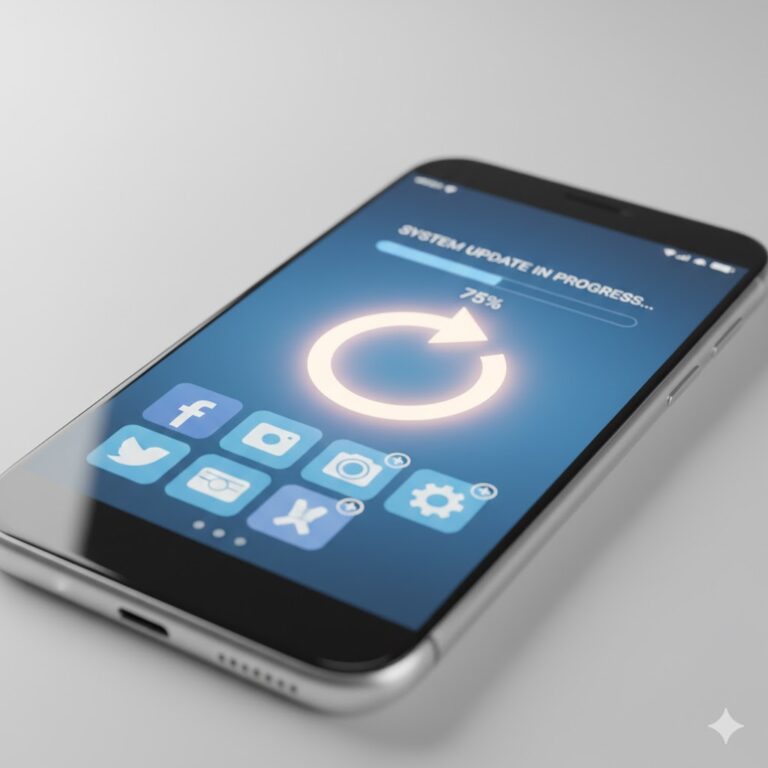
Restart your phone
Install system updates
Update apps from the app store
Free up storage space
Phones with less than 10–15% free storage often become slow, freeze, or crash because the system doesn’t have enough room to run background processes.
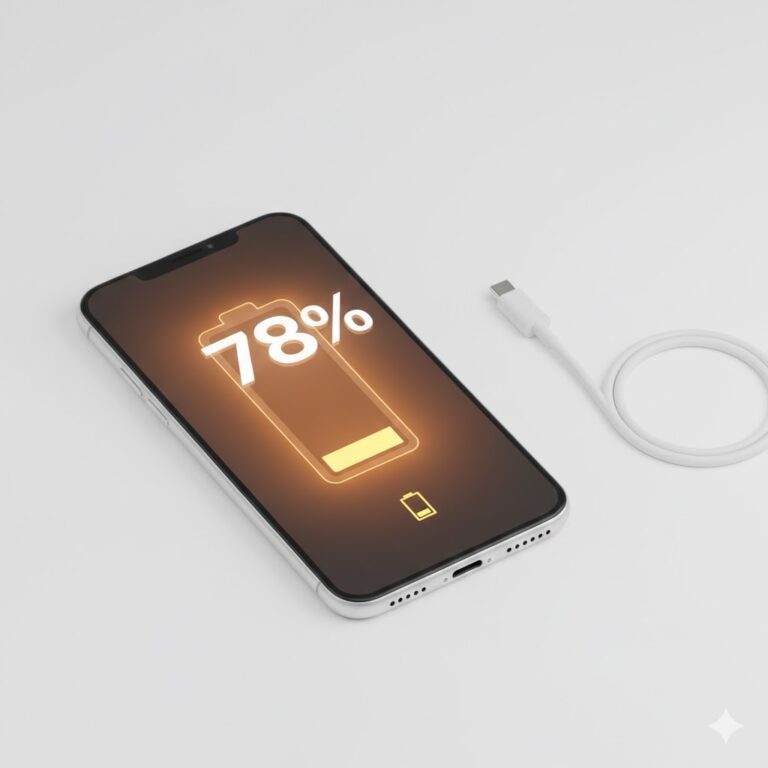
Battery degradation is one of the most common issues — especially after 2–3 years of use.
How to check:
iPhone: Settings → Battery → Battery Health
Android: Battery settings or trusted diagnostic apps
Warning signs of battery problems:
Battery percentage drops suddenly (for example 40% to 10%)
Phone shuts down in cold weather
Device overheats while charging
Back panel swelling (serious — stop using immediately)
Important: Lithium-ion batteries naturally lose capacity over time. After roughly 500 full charge cycles, most retain about 80% of their original capacity.
If your phone behaves unpredictably despite software fixes, the battery may be the cause.
Step 4: Diagnose Charging Problems
If your phone isn’t charging properly, don’t immediately assume the battery is dead.
Follow this order:
Try a different charging cable
Use a different adapter
Test another power socket
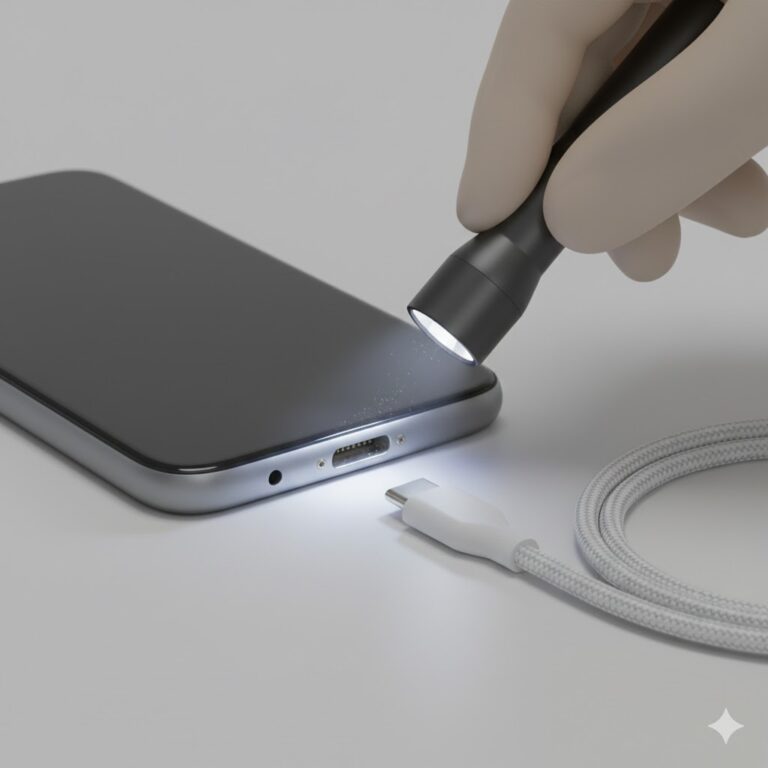
Inspect the charging port with a flashlight
Carefully remove lint with a soft brush or wooden toothpick
How to identify the issue:
Charges only when cable is angled → likely port issue
Charges with another cable → accessory problem
Charges slowly → poor quality cable or adapter
Many charging issues are caused by cables — not the phone itself.
Protecting your data ensures you don’t lose valuable information if the phone fails completely.
When DIY Diagnosis Isn’t Enough
Home diagnostics are helpful — but they have limits.
Seek professional help if:
The phone won’t power on
Charging problems continue after testing accessories
The battery or screen shows physical damage
The device overheats regularly
Water damage is suspected
A proper professional diagnosis can prevent minor issues from turning into major repairs.
Final Thoughts
Learning how to diagnose phone problems at home gives you confidence and clarity. Many smartphone issues begin small and can be resolved with simple checks.
The key is knowing:
Whether the issue is software-related
Whether accessories are to blame
Or whether it’s a genuine hardware fault
Understanding the difference helps you take the right next step — quickly, calmly, and with confidence.