Camera Not Working? Causes, Fixes & What Actually Works
Table of Contents
When your phone camera stops working, it always seems to happen at the worst time. You open the app and get a black screen, blurry image, or it just crashes completely. It’s frustrating—but in many cases, it’s not as serious as it looks.
Most camera issues are caused by small software or system problems that can be fixed in minutes. The key is understanding what’s causing the issue and applying the right fix instead of guessing.
This guide breaks it down in a simple, practical way so you can get your camera working again without wasting time.
What’s Really Happening With Your Camera?
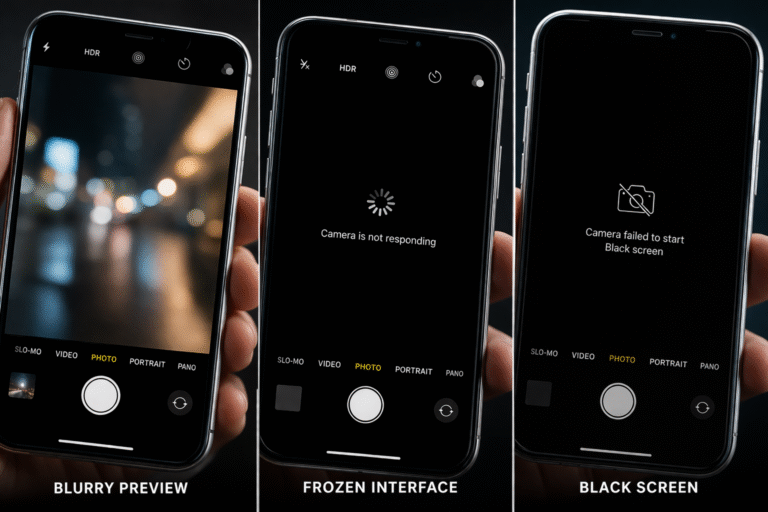
Camera problems usually show up in a few common ways. You might see a completely black screen when opening the camera, or the app may freeze and close instantly. Sometimes photos come out blurry even when the lens looks clean, or the camera lags when switching modes.
In other cases, features like flash stop working, or you might see error messages like “Camera failed”. These symptoms are not random—they’re clues pointing toward the root of the problem.
Why Your Phone Camera Stops Working
Software Issues Are the #1 Cause
Most camera problems come from temporary glitches. Your phone runs dozens of processes in the background, and sometimes the camera app conflicts with them. This can cause freezing, crashing, or failure to launch.
Permissions Can Block the Camera
If your camera works in one app but not another (like WhatsApp or Instagram), the issue is often permission-related. The app simply doesn’t have access to use your camera.
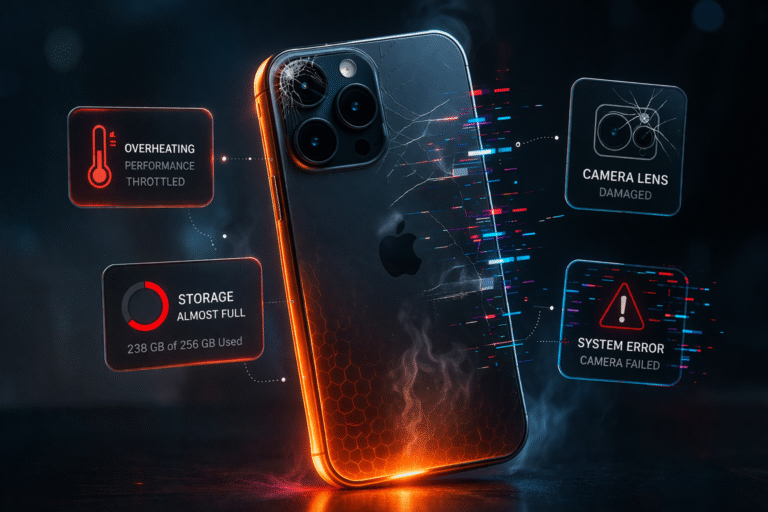
Your camera needs free space to process and store images. When storage is full, the camera may lag, freeze, or refuse to take photos altogether.
Overheating Slows Everything Down
Phones automatically limit performance when they get too hot. In some cases, this includes restricting camera usage to prevent further overheating.
Physical Damage Changes Everything
If your phone has been dropped or exposed to water, the issue may not be software at all. A damaged camera module or lens can cause black screens, shaking images, or complete failure.
Outdated Software Creates Compatibility Issues
Running an old version of your phone’s operating system can lead to bugs, especially after app updates. The camera may stop working properly until the system is updated.
How to Fix a Camera That’s Not Working
Before assuming the worst, start with the basics. A simple restart often clears temporary bugs and restores normal function. It’s the quickest fix—and surprisingly effective.
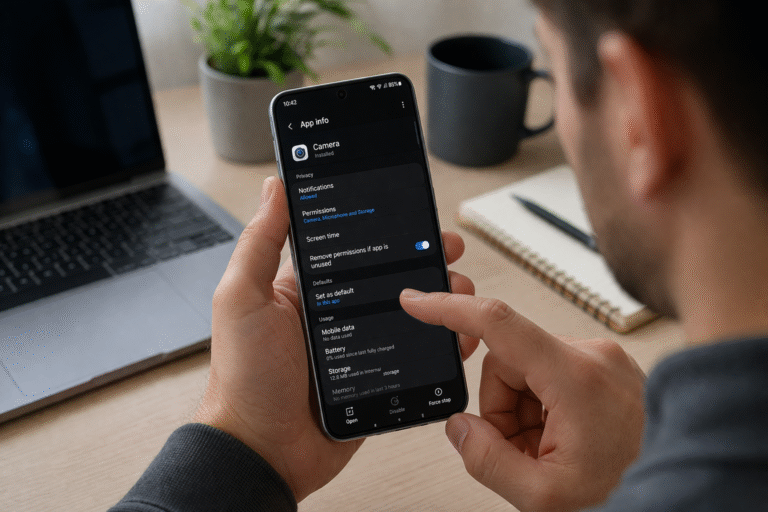
If that doesn’t help, go into your app settings and force stop the camera app. This refreshes the app without affecting your data. While you’re there, clearing the cache can remove corrupted temporary files that may be causing the issue.
Next, check permissions. Make sure your camera and storage access are enabled. Without these, the app simply can’t function correctly.
Storage is another big factor. If your phone is nearly full, free up some space by removing unused apps, videos, or duplicate photos. Even a few gigabytes of free space can make a noticeable difference.
Updating your phone is also important. Software updates often fix hidden bugs that affect performance, including camera issues.
If the problem still isn’t resolved, try running your phone in safe mode. This temporarily disables third-party apps, helping you identify if another app is interfering with your camera.
And don’t overlook something simple—cleaning the lens. A smudged or dusty lens can make photos look blurry or unfocused, even when the camera itself is fine.
When It’s No Longer a Simple Fix
If you’ve tried everything and the camera still isn’t working, the issue is likely hardware-related.
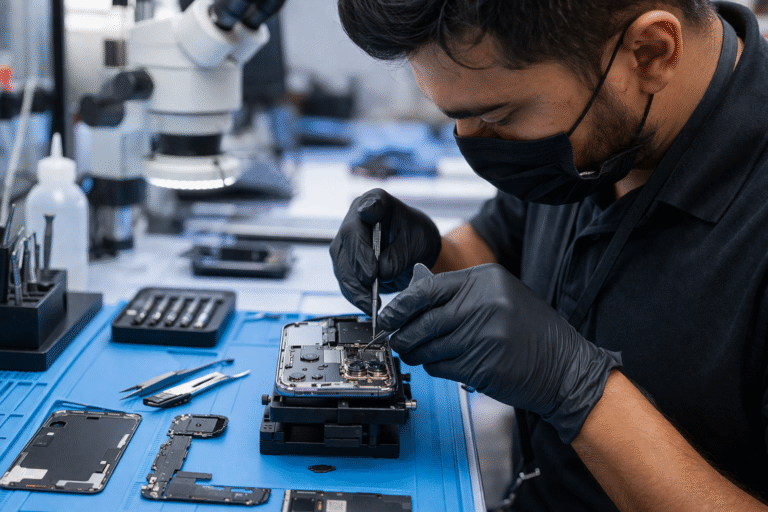
A camera that stays black even after resets, produces shaky or distorted images, or shows visible damage near the lens usually indicates a deeper problem. Water exposure or internal damage can also affect how the camera functions.
At this stage, trying more fixes won’t help—and may even make things worse. A professional inspection is the safest way to identify and resolve the issue properly.
How to Prevent Camera Problems in the Future
If you’ve tried everything and the camera still isn’t working, the issue is likely hardware-related.
A camera that stays black even after resets, produces shaky or distorted images, or shows visible damage near the lens usually indicates a deeper problem. Water exposure or internal damage can also affect how the camera functions.
At this stage, trying more fixes won’t help—and may even make things worse. A professional inspection is the safest way to identify and resolve the issue properly.
Final Thoughts
A non-working camera doesn’t always mean an expensive repair. In many cases, it’s just a minor issue that can be fixed with a few simple steps.
But if the problem continues, it’s best not to ignore it. Small issues can turn into bigger ones over time—especially when hardware is involved.